If you schedule a setup call with us, we will be using Google Meet, a video communications platform, in order to assist you with any troubleshooting or questions you may have.
-
If you will be using a desktop computer or laptop, you do not need a Google Account to participate in Meet video meetings. You will join via a link that is emailed to you.
-
If you will be using a tablet (for example, an iPad) or smartphone, you will need to have an existing Gmail or Google account. If you are not signed into a Google or Gmail account, you cannot join using your mobile device or tablet. You will need to download the Google Meet App onto your device.
How to access Google Meet WITH a Google Account
 |
Option #1: From your computer You can join a meeting from any modern web browser. There is no download required. Click on the meeting link provided to you in your appointment confirmation and reminder emails at your scheduled interview time. |
|
Option #2: iPad or Smartphone Download Google Meet mobile app from your App Store (for iOS users) or Google Play Store (for Android users). Make sure that you have the most up to date version. Click on the meeting link provided to you at your scheduled interview time. Click Ask to join. When someone in the meeting gives you access, you’ll join it.
|
How to access Google Meet WITHOUT a google account
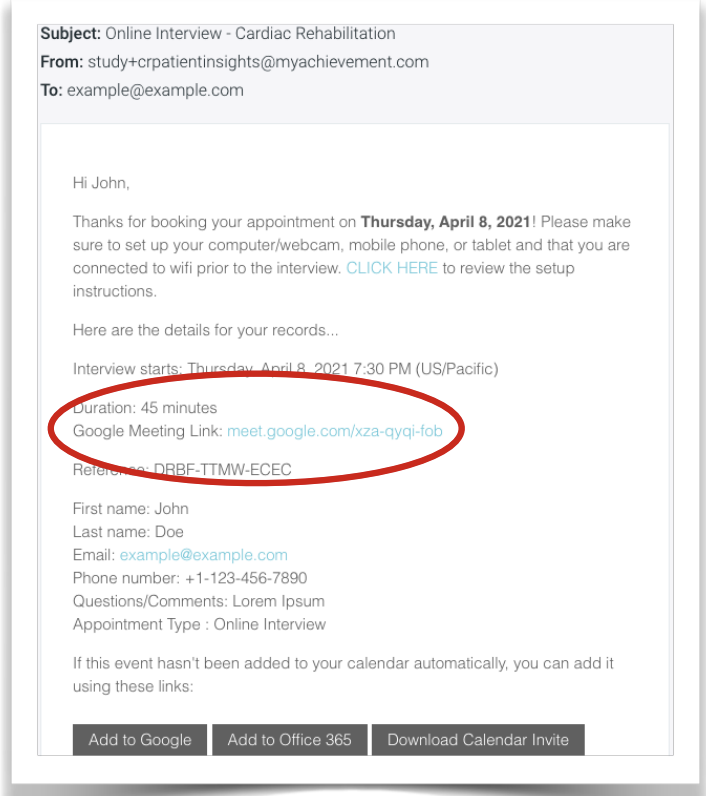 |
Step #1: Open your confirmation or reminder email with the meeting link. Click on the meeting link. |
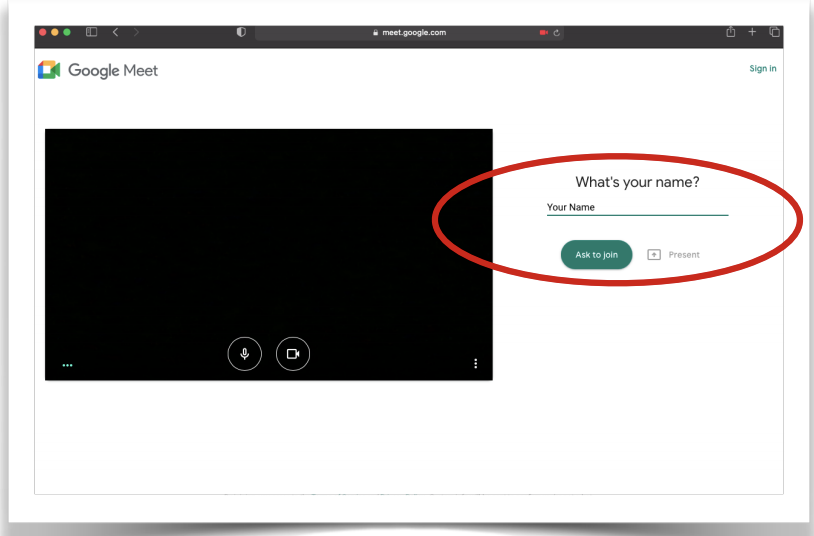 |
Step #2: Click Ask to Join. Type in your name, if prompted. When someone in the meeting gives you access, you’ll join it.
Please note: If you are not signed into a Google or Gmail account, you cannot join using your mobile device or tablet. You must either sign into a Google account or join the meeting from a personal computer. |
Helpful Tips for Using Google Meet:
-
Please ensure that your device's sound is at an appropriate volume that you can easily hear
-
Please ensure your device's battery is adequately charged. If it is low battery, it may be helpful to keep it charging during the call.
-
You will need to allow your device to access your Camera and Sound features as Google Meet requires both to complete a video call.
- Symbols you will see and what they mean:

-
Sound On (black microphone): This means we can hear you.
-
Muted (red crossed out microphone): This means your sound is off. You are muted and we cannot hear you. Click on this button to turn your sound on.
-
Video On (black camera): This means we can see you.
-
Video Off (red crossed out camera): This means we cannot see you. Click this button in order to turn your video on.
-
End Call button (telephone): Clicking this will hang up or stop the call. Do not press this unless until the end of the call.
-