Using the iPad
Please make sure your iPad does not Auto-Lock or exit the Memory Games at any point or you will not be able to complete the activities. Check that your Auto-Lock setting is set to ‘Never’ to allow your device to remain active for the duration of the Memory Games. You can read more about these settings in the ‘Auto-Lock’ section by clicking HERE.
The following instructions explain how to set up the iPad to complete the memory games for the study.
Make sure you have the following items:
-
iPad
-
iPad charger
-
iPad stand
-
Turn on the iPad
-
Press and hold the on/off button on the side of the iPad until the unit powers on
-
If the iPad battery is less than 50%, charge the iPad immediately and keep it plugged in while you complete the memory games.
-
-
Position the iPad.
-
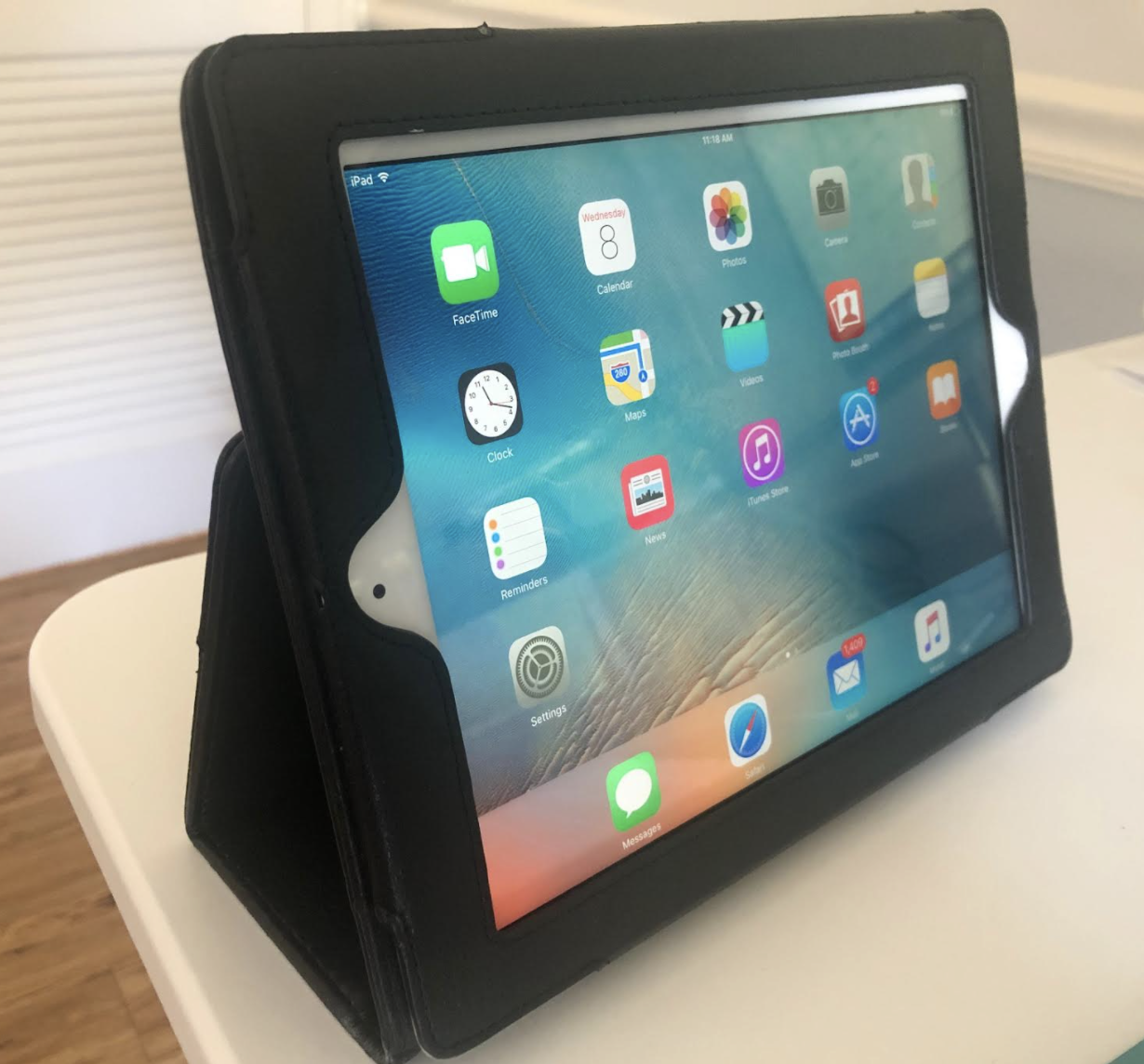
Pull back the iPad on a secure stand on a flat surface in a place where it is comfortable for you to touch the screen with one finger. You may place your elbow on the table. The iPad should be sloping at an angle of about 45 degrees.
-
Ensure the iPad is placed in a landscape (longwise) position on the stand with the home button on the right-hand side of the device (as pictured on the right). This will mean the iPad is always in the same correct orientation.
-
-
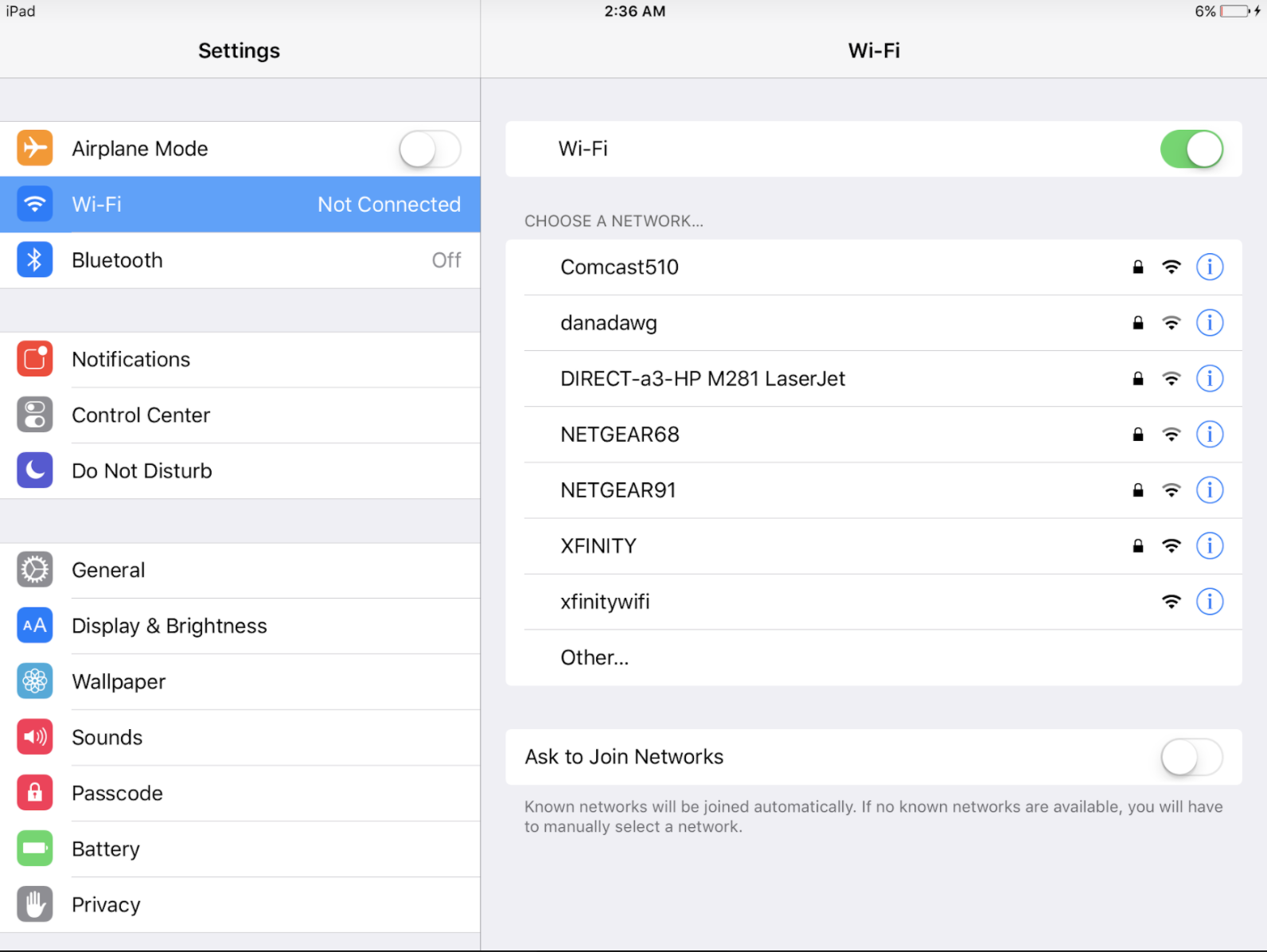
Connect to WiFi. Please contact Achievement Studies if you do not have access to Wi-Fi connectivity. To connect your device to a local Wi-Fi connection, please follow the steps below.
-
-
Open Settings
-
Select Wi-Fi from the left-hand menu
-
Ensure the Wi-Fi is switched on
-
Select your home Wi-Fi network (you may need to enter a password to connect)
-
A blue tick will be displayed when connected successfully
-
Press the Home button on the front of the iPad to return to the Home screen.
-
4. Turn off "Auto-Lock" for your session.
- This will ensure that you are able to complete the activity from start to finish.
- Review the ‘Auto-Lock’ section on by clicking HERE.
5. Position yourself.
-
-
You should be sitting comfortably in front of the screen.
-
You should be able to touch the screen easily with the pointing finger of your dominant hand (the hand you typically write with).
-
You should not hold the iPad to complete the assessments.
-
You should be able to see the screen clearly (e.g. no bright light shining on the screen, and screen not facing a sunny window).
-
The room should be quiet with no distractions during the complete session (e.g. closed door, cell phone turned off).
-